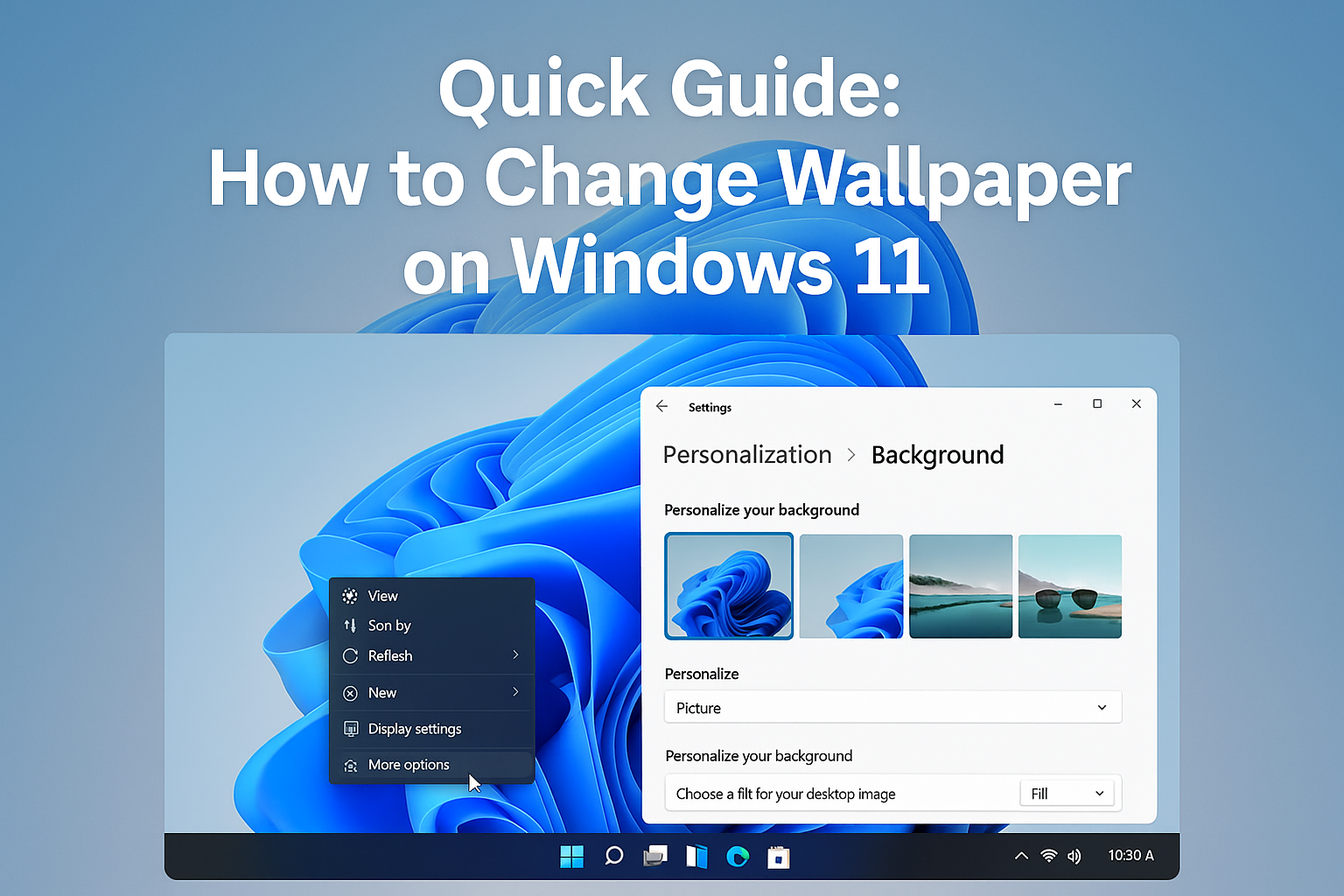
Quick Guide: How to Change Wallpaper on Windows 11
Your computer wallpaper sets the tone for your workspace. Whether you like minimal designs, motivational images, or photos from your last vacation, Windows 11 makes it easy to customize your desktop background. If you’re new to Windows 11, this guide will walk you through step by step.
Why Change Your Wallpaper?
Changing your wallpaper is more than just decoration. A background that reflects your style can:
- Make your PC feel more personal
- Boost your mood while you work or study
- Help you stay focused with a clean, calming design
Method 1: Right-Click on the Desktop
- Go to your desktop (minimize or close open windows).
- Right-click anywhere on the blank space.
- Select “Personalize” from the menu.
- This opens the Personalization settings window.
From here, you can pick a new wallpaper.
Method 2: Use Windows Settings
- Open the Start Menu (click the Windows logo at the bottom center of your screen).
- Select Settings.
- In the sidebar, click Personalization.
- Then click Background.
This will show you your current wallpaper and customization options.
Choosing a New Wallpaper
Inside the Background settings, you can:
- Pick a Picture: Use built-in Windows wallpapers or upload your own by clicking Browse.
- Set a Solid Color: Keep things simple with a single-color background.
- Create a Slideshow: Choose a folder of images to rotate automatically.
Adjusting How the Wallpaper Fits
Sometimes, an image won’t perfectly match your screen. You can adjust the fit with options like:
- Fill – Stretches to cover the screen (best for widescreen photos)
- Fit – Shows the full image but may leave borders
- Stretch – Fills the screen but can distort the picture
- Tile – Repeats the image in a grid
- Center – Places the image in the middle
Quick Tips
- Use high-resolution images for the best quality.
- Download wallpapers from trusted sources or use your own photos.
- Refresh your workspace by changing your wallpaper regularly.
Bonus: Free Digital Downloads 🎉
Miss the classic Windows XP hills or the original Windows 95 clouds? We’ve collected a set of original old Windows wallpapers in higher resolution. They’ve been carefully scanned, restored, and are completely free to download.
👉 Visit our Digital Downloads section to grab your favorites. All files are virus and malware free, so you can install them safely.
Final Thoughts
Customizing your wallpaper is one of the easiest ways to make your Windows 11 PC feel like your own. In just a few clicks, you can swap the default blue background for something that inspires you every time you log in.
Right-click your desktop and try it now!